Introduction
Choosing an attendance tool is rarely straightforward, since every platform comes with its own trade-offs. If your institution already teaches with Blackboard, or is planning to use it for attendance across the university, this post will help you decide. Blackboard has an attendance tool built right into the gradebook, which makes it an easy place to start. But it also has gaps, especially in large lectures and when it comes to reporting. We’ll walk through how it works, where it does well, where it falls short, and what you can do about it. This post is part of a series that also covers attendance tracking in Moodle, Canvas and Brightspace.
How attendance works in Blackboard
Before looking into how recording attendance in Blackboard currently works, we need to set the parameters of what a “good” attendance tracking system needs to do. Building on our guide to choosing attendance tracking software, throughout this series, we judge each platform against the same four criteria. A good system should be:
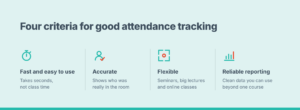
- Fast and easy to use: taking attendance shouldn’t eat into teaching time.
- Accurate: records should reflect who was actually there and be hard to fake.
- Flexible: it should work for a seminar of 15 and a lecture of 300, in person or hybrid.
- Reliable in its reporting: it should produce clean data that’s useful beyond the classroom, for advisors, programme leads or compliance.
Now let’s see how the attendance tracking function in Blackboard performs against these criteria. Unlike Moodle, Blackboard comes with attendance tracking built in. It is, however, disabled by default and enabling it can only be performed by the administrator. For the full step-by-step breakdown, including screenshots, read this official Guide.
Once it’s enabled, teachers can add attendance to their course from the gradebook or via “Mark attendance” in the course’s Details & Actions panel, in both the Ultra and the Original course view. Because attendance lives directly in the gradebook, it feels like a natural part of the course rather than an extra tool. This makes it much easier to adopt for less tech-savvy professors.
Setting up meetings and statuses
In Blackboard, class sessions are called meetings, and they work a little differently than in other tools. Instead of planning a semester in advance, each time an instructor opens the Attendance tool, the system creates a new meeting for that day. You can add extra meetings by hand, such as a field trip after class, including meetings on future dates. This means you don’t have to set anything up before the semester starts. On the downside, Blackboard doesn’t let you create recurring meetings. The tool records when you took attendance rather than following your timetable, which makes the overview a bit less organised.
Each meeting uses four statuses: Present, Late, Absent and Excused. Present always counts as 100% and Absent as 0%, while Late is set to 50% by default and can be adjusted. Excused counts as present, but you can choose to leave it out of the calculation entirely. Beyond that, there’s little room for customisation: the statuses can’t be renamed or extended, and Anthology states that “you can’t change the percentages for Present, Absent, and Excused at this time.” So keep in mind that you can add attendance to a course only once, and you can only delete it while it has no records. So decide on your grading settings before the first class.
Taking attendance
Taking attendance in Blackboard is the application’s biggest weakness; there is no way for students to check themselves in through a QR code or password, but more on that in the section below, including the existing workarounds. In Blackboard, taking attendance is a manual process. The teacher opens the meeting and marks each student. To speed things up a little, each column has bulk options such as “Mark all present”, so in practice you mark everyone present and then change the few exceptions. Changes are saved automatically, and profile pictures next to each name help teachers recognise students. This works well for seminars and smaller groups, but in a lecture hall of 150 it is still the teacher who has to determine who’s actually in the room. For online classes, on the other hand, Blackboard is sensational. Through Blackboard Collaborate, the teacher can automatically send attendance directly to the Attendance page, so no manual marking is needed at all.
Reports and grades
Blackboard posts attendance grades to the gradebook automatically as you mark, and students see the changes immediately. In the Overall view, teachers get a quick summary of the course: the class average, how many students have perfect attendance, and who is above or below average. Selecting a student shows their individual attendance record, including how many meetings they’ve missed. Furthermore, you can export the records as a CSV file, for example, to import them into your student information system. Keep in mind that all of this is tied to a single course, and that attendance data is not included when you copy or export a course. Planning a new term from last year’s course therefore means starting your attendance records from scratch.
Where Blackborad attendance falls short
Overall, Blackboard’s attendance tool does a lot right. But only in certain settings. Let me explain. The solution is well integrated into the rest of the platform, so professors won’t have to learn a completely new UI, and it’s equipped with the necessary functionality an attendance-tracking solution needs. However, based on the factors mentioned above, we found major limitations in both accuracy and Reliability in its reporting.
Accuracy & speed
Where Blackboard’s solution really falls short is that it doesn’t offer student self-check-in. This is not a problem in a seminar of 15. In a lecture hall of 150, things change a lot. Taking attendance by hand would simply take too long. So many lecturers fall back on the traditional paper method. The paper method is quite accurate, but it has two downsides. First, it is much slower than a self check-in. Second, it creates a lot of manual work afterwards, because the lecturer has to transfer the attendance into a database. To get around this, many universities add a third-party tool such as Qwickly Attendance. It lets students check in with a PIN or a QR code. That solves the speed problem, but brings back a different one: codes can be shared. The University of Maryland, Baltimore County, for example, describes its move to rotating QR codes as a way to “reduce the chance of false attendance”, which shows that the problem is real. But as we explained in our comparison of QR code and Bluetooth attendance, a QR code can be shared as a screenshot in seconds.
Reliable in its reporting
In this case, it’s not quite the reliability but the scalability and ease of reporting that has its flaws. Attendance records need to be kept in a database for a multitude of reasons. International students may need it to keep their visas, institutions may need it to prove seat time for federal funding, accreditation, and Monitoring Engagement. Yet the tool’s reporting stays at the course level. The Overall view shows a course average and a student summary, and the only documented export is a CSV file per course. Particularly in large institutions, this means a lot of manual work that could be avoided with a more comprehensive attendance tracking system. So what if you could keep everything you like about Blackboard, and fix the two things it struggles with?
How to get around Blackboard’s limitations
That’s exactly what the Blackboard integration of Attendance Radar (AR) is for. With the AR integration, you give the students the possibility to do self-checking without the risk of sharing QR codes through a messenger. Through Attendance Radar, the professor can send out a Bluetooth signal where students can sign in themselves as long as they are within the range of the signal. Importantly, each device can check in only once per class. Switching accounts doesn’t help, because the check-in is linked to the device. A lecture hall of 150 students can check in at the same time. Nobody passes around a paper list, and nobody copies names into Blackboard afterwards. A separate late scan picks up students who arrive after the main check-in and marks them as late automatically. For online classes, the lecturer can share a six-digit code instead.
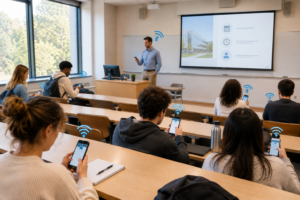
Also, the reporting deficiencies can be solved through the Attendance Radar integration. Lecturers can follow attendance from session to session. Then compare it across their courses and see each student’s average attendance at a glance. A single Excel summary sheet covers all sessions of a course. Also importantly, past courses can be archived and restored with all their attendance records. This means that a student’s history stays in one place from term to term. In Blackboard, by contrast, a regular course copy leaves attendance data behind in the old course. What makes the process scalable and takes away a lot of manual time is that the API integration sends attendance records directly into your own systems. So advisors, programme leads and international offices work with central, up-to-date data instead of collecting CSV files from each course. Lastly, an administrator panel and single sign-on with university accounts make the rollout easier across faculties.
Interested? The Blackboard integration is available as part of our University plan. To find out how it would work at your institution, get in touch with us.